Managing multiple brands or client accounts just got easier!
You can now upload and assign different watermarks for each social account, so every post carries the right brand identity automatically.
What’s New
- Upload multiple watermarks (one per social account) directly from Social Planner Settings.
- Name and preview your watermarks before saving.
- Assign to all socials at once using “Select All” or set unique watermarks for specific accounts.
- Edit or delete watermarks anytime (with confirmation if they’re assigned).
Why This Matters
- Save time with no more re-uploading logos for every post.
- Keep your brand identity consistent across platforms.
- Perfect for accounts managing multiple brands in one place.
How to Use
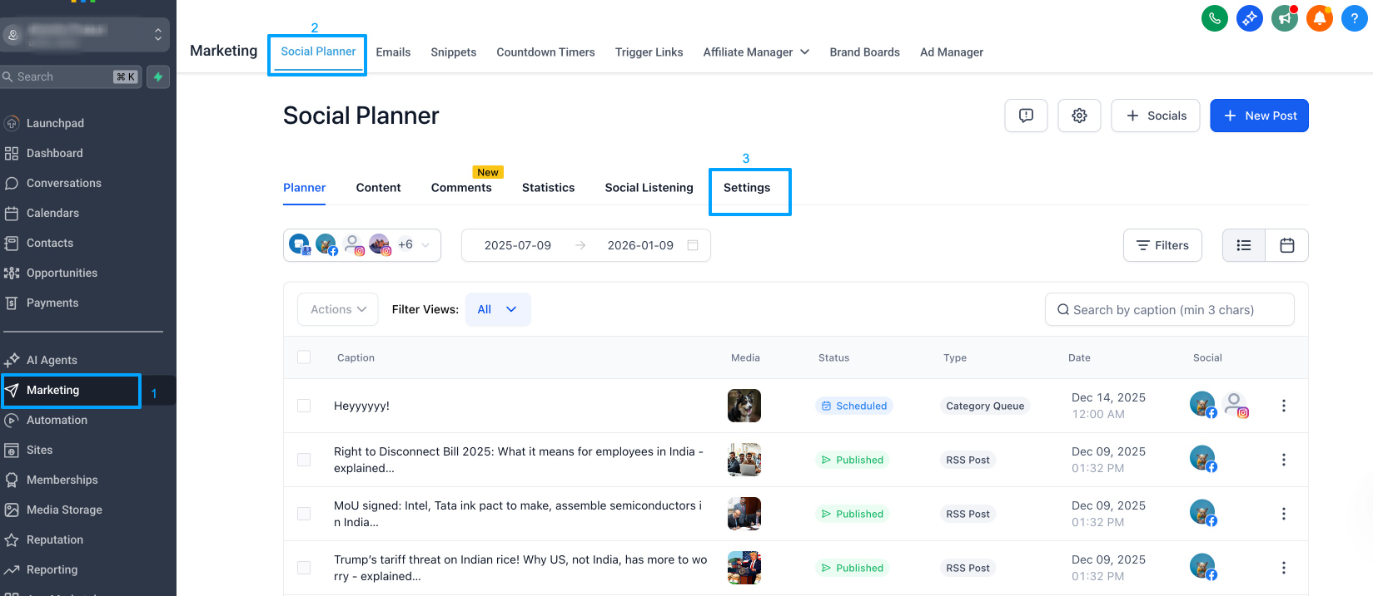
- Go to Marketing → Social Planner → Settings → Watermark
- Click “Add Watermark” to upload and name your watermark (PNG, max 5MB).
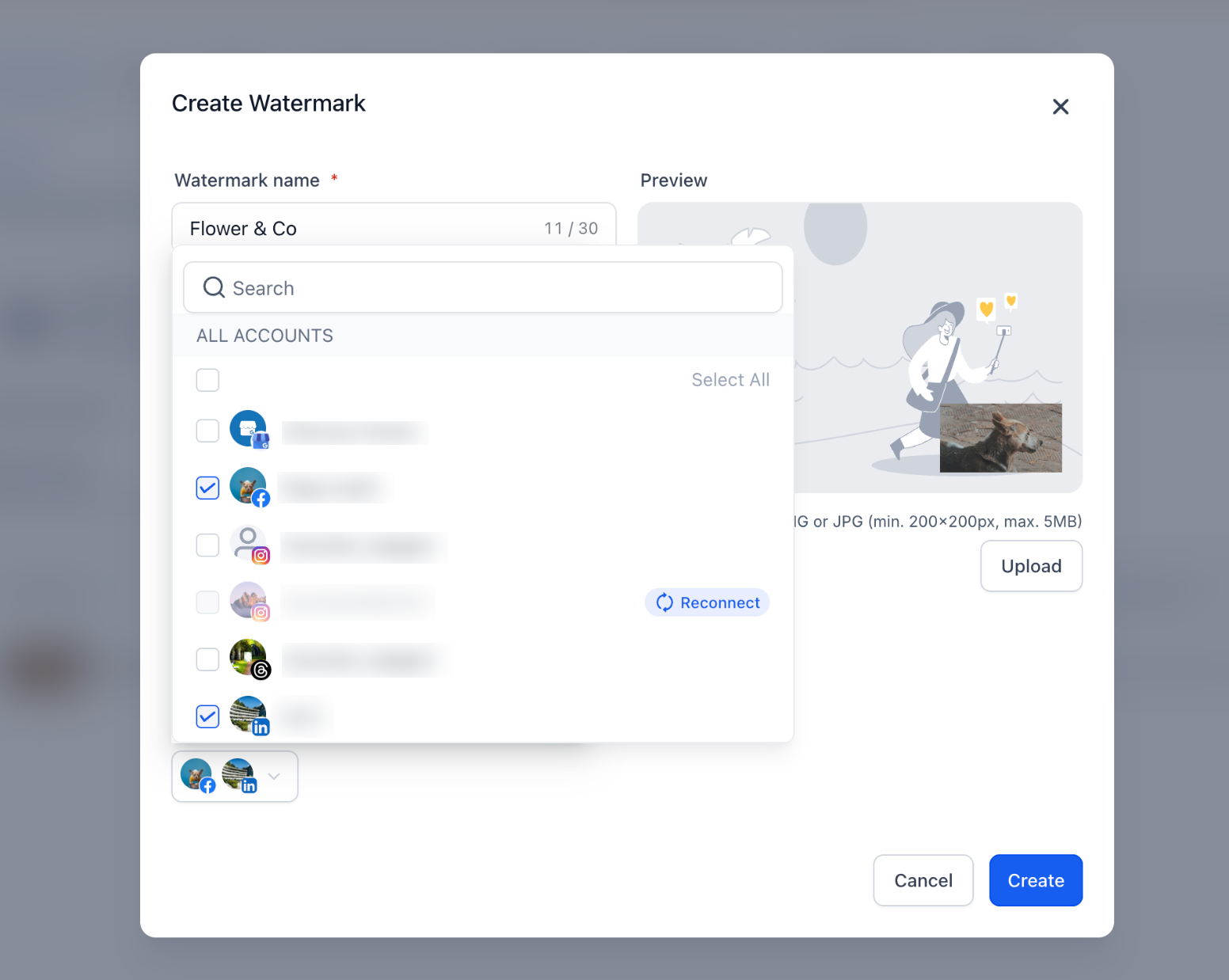
- Use the “Select All” option to apply to all socials, or assign individually.
- Manage, edit, or delete any watermark from your list anytime.
Note:
If you haven’t added a watermark yet, you’ll see an “Add Watermark” nudge prompting you to create one. And if you already had watermark assigned than your existing single watermark will automatically appear in the list view as “All Socials”. You can choose to edit this setup and assign specific watermarks to each account later.Was this article helpful?
That’s Great!
Thank you for your feedback
Sorry! We couldn't be helpful
Thank you for your feedback
Feedback sent
We appreciate your effort and will try to fix the article